

We have completely redesigned our customer portal for you. If the steps described in the guide differ from what you see, you will find a PDF version of the old guide at the end of this article.
FQDN Connection: Integrating AI Services into the Cloud PBX
Artificial intelligence in telephony has long been more than just a trend: Companies are using AI voice agents to automatically answer calls, respond to customer inquiries, and even conduct complex conversations. This saves time, reduces costs, and improves accessibility.
With our FQDN integration, you can integrate such AI and voice services into the Cloud PBX Pro—without additional hardware or complicated configuration. The PBX routes incoming calls to a user or resource and then forwards them to the external service of your choice.
1. Determine the SIP URI
Please first obtain the SIP URI from your VoIP or AI service provider. You will need the SIP URI to set up the FQDN connection in the Cloud PBX. The necessary steps may vary depending on the provider.
We will be expanding our selection of guides.
Guide: Using AI services from fonio.ai with Easybell
2. Access the Cloud PBX
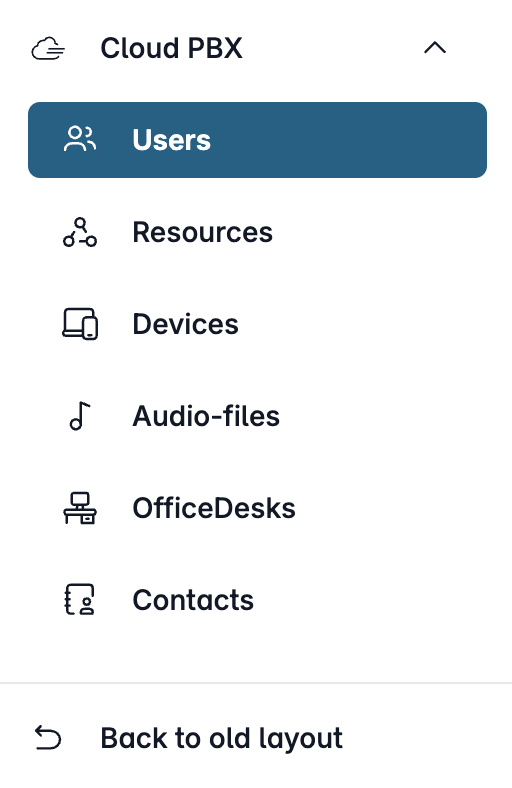
Open my.easybell and click on “Cloud PBX” in the menu bar.
Depending on the function, the Cloud PBX uses two different types of extensions:
- User: person-specific extensions
- Resources: non-person-specific extensions
Please click on the relevant entry in the sidebar.
3. Create a new FQDN resource
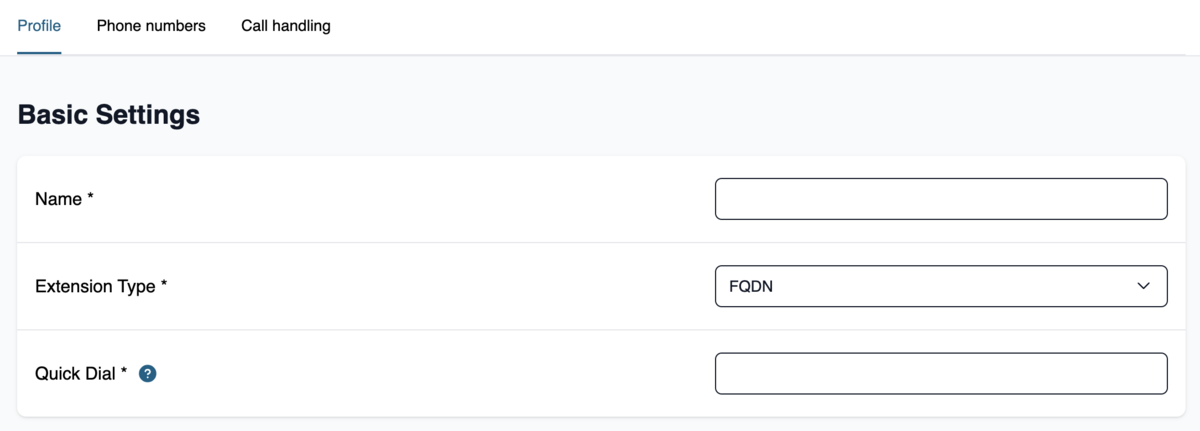
In the side navigation of your Cloud PBX, open the "Resources" section and click "+ Add Resource".
Select "FQDN" as the extension type.
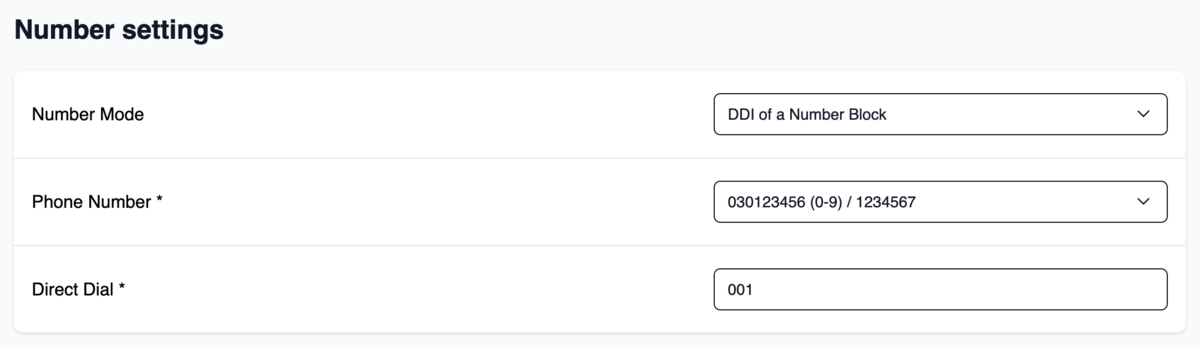
In the "Phone Numbers" tab, you can set up the number under which your service will be reachable later. For more information, see the article "Create an Extension in the Cloud PBX."
4. Enter the SIP URI
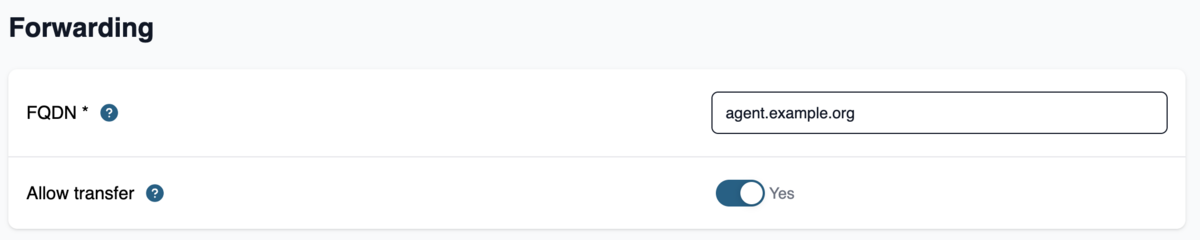
In the "Call Handling" tab, under "Forwarding" > "FQDN," enter the SIP URI of the service you identified in Step 1. Please omit the "sip:" part.
Example: agent.example.com
Video tutorial
Enable internal forwarding via FQDN resource
An advanced feature is available for FQDN resources in the Pro version of the Cloud PBX:
Calls—e.g., from AI agents or other connected services—can be forwarded from an FQDN resource to internal users or resources of the Cloud PBX.
1. Enable option
Open the settings for the relevant FQDN resource. Under "Call Handling," you will find a new checkbox for enabling call forwarding.
2. Key Framework Conditions
- Only internal call transfers within the Cloud PBX are permitted.
- Forwarding to external phone numbers (e.g., mobile phones, landlines outside the system) is generally blocked.
- This feature is only available in the Cloud PBX Pro.
Example: Setting up call forwarding via Fonio
Here is a brief overview of how to set up call forwarding to a connected service (e.g., Fonio):
- In Fonio, a call forwarding is configured under Tools and then saved in the prompt.
- Forwarding to other extensions is created as type “SIP” (not “phone number”).
The internal speed dial in the format extension@easybell is used as the SIP URL, e.g., 200@easybell
- The “@easybell” is required.
- The part after the @ symbol is technically ignored but appears in the call transcript.